Reviews
Rankhog Review - Reddit Marketing and Account Warm-Up on Autopilot
We've tested Rankhog, a Reddit marketing tool that finds buyers in threads, drafts replies that follow each subreddit's rules, and warms up new Reddit accounts.
We've tested DisplaySwitcher, a desktop app for Mac, Windows and Linux that switches your monitor's input from a button and moves text and files between your computers with no network setup.
Welcome to this DisplaySwitcher review ✨
If you work with two computers on one desk, you know the little rituals. You reach behind the monitor and dig through its menu to change the input. You email yourself a link because the Windows laptop and the Mac don't share a clipboard. You look for a USB stick to move a file thirty centimeters to the left.
DisplaySwitcher, built by Boyd Edmondson at Nebula Software, goes after both rituals with one desktop app for Linux, macOS and Windows. Boyd asked me to look at four things: switching a monitor's video input with a software button, moving text and files between computers (including across operating systems), doing all of that without any network or firewall setup, and letting another connected computer flip the monitor when one machine can't do it directly. He also asked for a review of the installed app rather than of the website, so that's what this is: I installed it on two MacBook Pros and used it.
One thing to say upfront. My desk doesn't have a monitor with two video inputs (my Studio Display and my second monitor each have a single one), so I couldn't physically set up monitor switching. That's a limit of my hardware, not something I saw DisplaySwitcher fail at, so this review focuses on Computer Transfers.
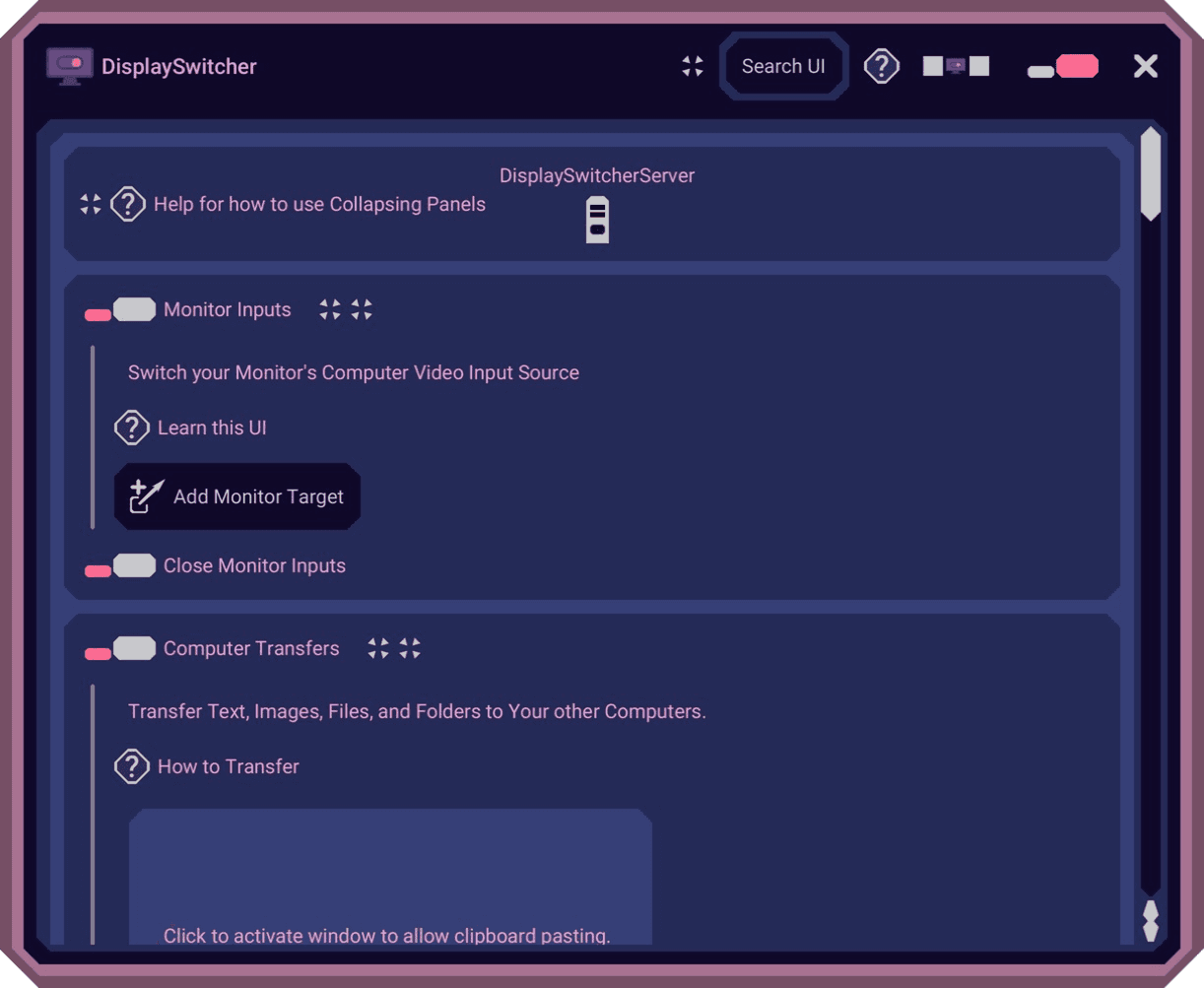
On a Mac, DisplaySwitcher runs on Apple Silicon only, and the documentation says so clearly. You download an installer from the docs, open it, type your administrator password, and the app lands in its own DisplaySwitcher folder in Applications, next to an uninstaller. It also sets itself to start when you log in, which you can turn off. On launch, the window showed up in about 1.8 seconds according to the app's own log.
There's no account to create inside the app. On first launch it asks for a license, and you get one by starting the one-month free trial through the checkout on the Nebula Software website. Since my test, that trial no longer asks for a credit card. Once that's done, the app activates on your machine and connects to its server on its own.
I should be honest about how my setup went, because it wasn't smooth. Boyd told me I was the very first customer to go through his purchase flow, and it showed. The checkout only accepted US addresses at first. On my M5 MacBook Pro, the app quit silently on its first launch because the installer had created its data folder with the wrong owner. On my older M1, the installer wouldn't open at all. The good news is how each of these ended: Boyd opened the checkout to other countries within hours, rebuilt the installer several times over a few days, and the latest build installed and ran fine on the M1. He has since shipped an installer that fixes the folder permission issue too, so anyone downloading it now gets those fixes. The app also updates itself: during my test it installed two updates on its own and relaunched.
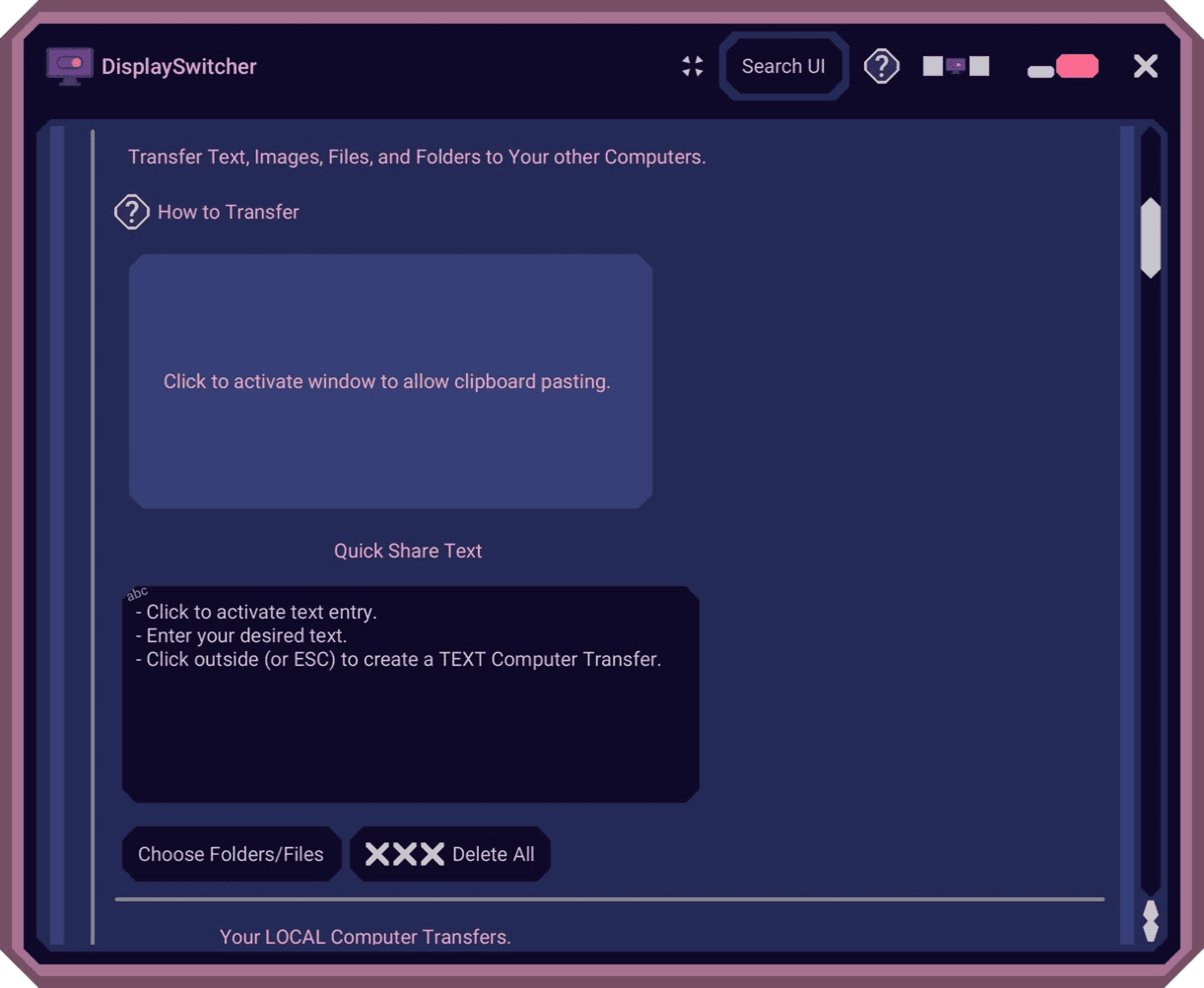
This is the part of DisplaySwitcher I spent the most time with. The Computer Transfers panel says what it does in one line: "Transfer Text, Images, Files, and Folders to Your other Computers." Below that sits a large light blue area. You hover it and press Cmd+V (or right-click), or you drag something onto it: text, an image, files or folders.
Under it, a Quick Share Text box works like a shared note. You click it, type, and click outside (or press Esc), and that text becomes a transfer. A Choose Folders/Files button opens a file picker if you'd rather browse, and Delete All clears everything.
The "no network setup" promise holds up, and it's easy to see why. You don't pair the two machines, type an IP address or open a port. Each copy of DisplaySwitcher connects to Nebula Software's own servers, and they pass your transfers along to your other computers on the same account. Once my second Mac was running, the app's log simply reported "DisplaySwitcherServer reported 1 other connected computer(s)." According to Nebula Software, the app picks an available server based on response time and capacity, and Boyd set up a server in Paris during my test so transfers would be faster for people in Europe.
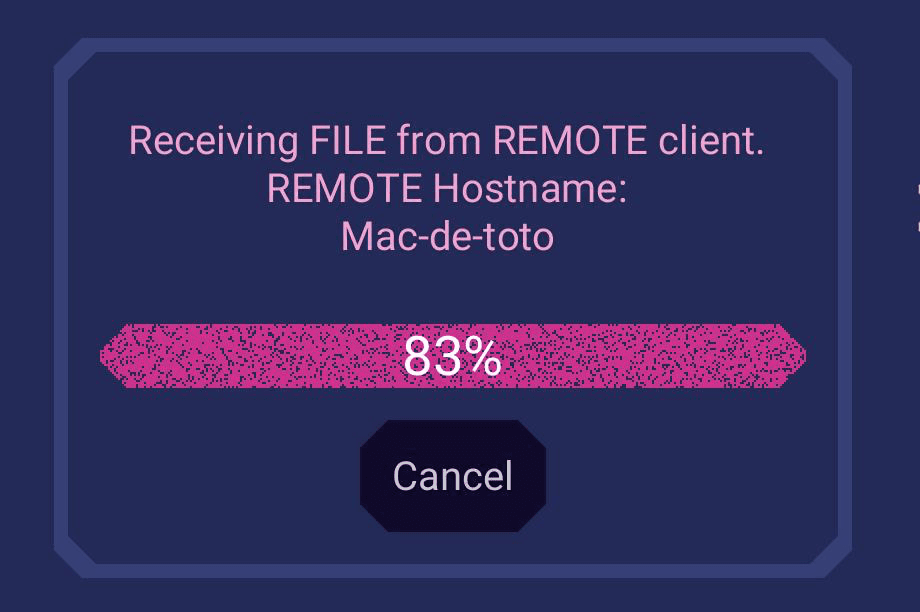
In practice, it's fast. Text I pasted on my M5 appeared on the M1 in under a second, and the 1 MB and 50 MB test files felt just as quick. While a file comes in, the receiving Mac shows a small window with the sending computer's name and a progress bar.
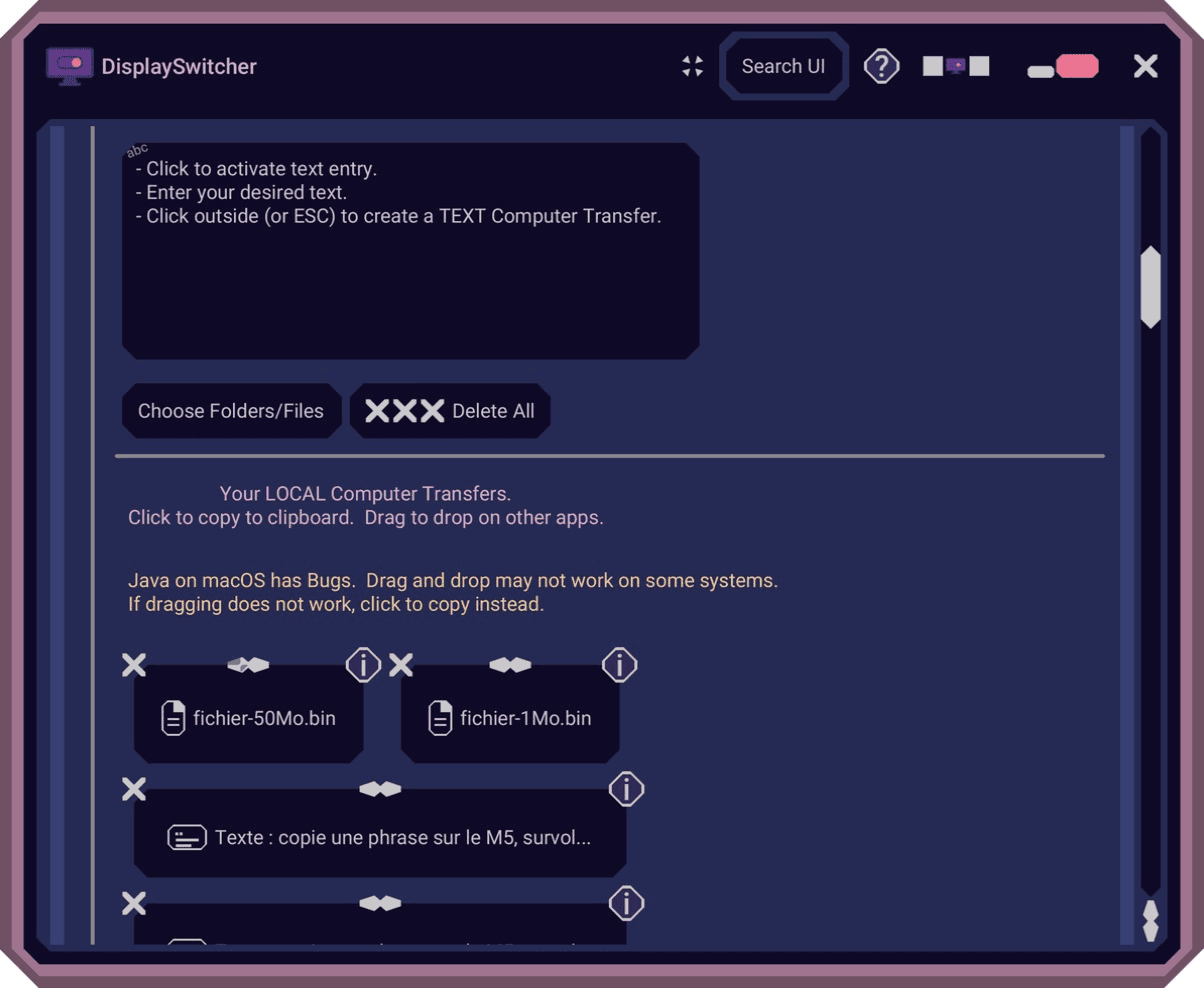
Everything you send or receive lands in a list titled "Your LOCAL Computer Transfers. Click to copy to clipboard. Drag to drop on other apps." Both worked for me: clicking an item and pasting it elsewhere, and dragging it onto the desktop. Each item has a delete cross and an info button. Right above the list, a yellow note reads "Java on macOS has Bugs. Drag and drop may not work on some systems. If dragging does not work, click to copy instead." I like that kind of honesty, even if it's a little odd to see inside an app.
One thing caught me out. Transfers only go to computers that are connected at that moment. My first three pastes happened before the M1 had joined, and the app logged them as complete with no remote computer to send them to, so they stayed on the M5. Check that the other machine is online before you paste.
I tested Mac to Mac, mostly from my M5 to my M1, so I can't speak to transfers with Windows or Linux, which is a big part of Boyd's pitch. And since transfers go through Nebula Software's servers rather than your local network, your files pass through a third party. Nebula Software says your text and files are protected by encrypted connections and only travel between computers signed in to your account. I could see that the app talks to its servers over HTTPS, but I couldn't verify the rest myself.
I couldn't test the switching itself, but I did go through the setup. Clicking Add Monitor Target opens a "Create a Monitor Input Shortcut" window that walks you through four choices: the computer that talks to the monitor ("Local or Remote"), the monitor, the video input source, and a name for the shortcut (it suggests your target computer's name). You then pick an image for the button, from built-in computer icons or one you upload.
The input list offers 17 standard names, from HDMI 1 and 2 to DisplayPort, DVI, VGA and a few legacy ones, so you pick the one that matches where your other computer is plugged in. That "Local or Remote" choice is where the fourth feature Boyd mentioned lives: a shortcut can ask another connected computer to send the switch command when the one you're on can't. According to the docs, the monitor has to support DDC/CI, and HDMI can be unreliable on Apple Silicon Macs, so DisplayPort or USB-C is the safer connection.
DisplaySwitcher doesn't look like any other app on your Mac, and that's on purpose. Boyd explained that he wrote his own interface toolkit from scratch rather than using Java's standard one, which gives the app its windows with clipped corners, collapsible panels, a "Search UI" button and an animated progress bar. Almost every section has a question mark button ("Learn this UI", "How to Transfer") that points to help.
I'll be honest about how it felt: with the first version I installed, the interface was slow and choppy on my Macs, and I sometimes had trouble finding what to click. Boyd tracked down a likely cause and shipped an update, and with it the interface got noticeably faster. It still doesn't behave like a native Mac app, and macOS's accessibility tools couldn't see any of its buttons during my test, which matters if you rely on a screen reader. Boyd also mentions built-in help documents and videos, plus a recorder that lets you send support a video of a bug. I didn't try those.
Prices are in US dollars.
| Plan | Price | Free trial |
|---|---|---|
| DisplaySwitcher subscription | $2.95 / month | 1 month, no credit card |
You start the trial through the checkout on the website and cancel from your account page, with no need to contact anyone. According to Boyd, a license covers up to three computers, and mine ran on both of my Macs.
If your computers are all Apple, AirDrop and Universal Clipboard already cover a lot of this for free. LocalSend is the usual free, open-source pick for sending files across platforms, but it works peer to peer on your local network. On the monitor side, Mac utilities like Lunar or BetterDisplay can also send DDC commands to a monitor. DisplaySwitcher's angle is putting both jobs in one app for Mac, Windows and Linux, with transfers that need no network setup on either machine.
It's a good fit if you:
It's less of a fit if all your devices are Apple (AirDrop does most of this), if you'd rather keep files on your local network, or if a native-feeling interface matters a lot to you.
That's the end of this DisplaySwitcher review. The transfers are the real draw: you install the app on two computers, and from then on anything you paste or drop on one shows up on the other within a second, without touching your network settings. The interface takes some getting used to, and my launch week was bumpy, but I also watched a solo developer fix every issue I reported, sometimes the same afternoon.
What I liked:
Things to keep in mind:
If you juggle two computers on one desk, DisplaySwitcher is worth a month of free trial.
Reviewed product
Switch monitor inputs and transfer text and files between computers
Category
BusinessPricing
PaidHow to Stay on Top of New Startup Launches: Where to See Today's New Apps
Where to see today's new app launches and trending tools, and how to follow new startups without spending your day on it: daily rankings, newsletters, communities and feeds compared.
Omnisend Review - Email and SMS Marketing Built Around Your Store
We've tested Omnisend, an email and SMS marketing platform for ecommerce that plugs into your store and runs welcome, abandoned cart and post-purchase automations, with AI helpers for subject lines and segments.